If you run a Shopify store connected to Odoo and your fulfilment partner (3PL) moves to a new platform, your stock can quietly stop syncing. The new warehouse shows up in Shopify, but when you open your Shopify–Odoo inventory location mapping, it simply isn’t in the list.
That’s exactly what one of our merchants ran into this week. Their 3PL switched to QLS, Shopify started holding their stock on a brand-new “QLS” location, and Odoo stopped receiving any inventory updates. Below we explain what caused it, how we fixed it in the Odoo Integration app for Shopify, and the three steps to get your stock flowing again.
The problem: a new 3PL location can’t be selected
Here’s what the merchant saw after their fulfilment partner switched platforms:
-
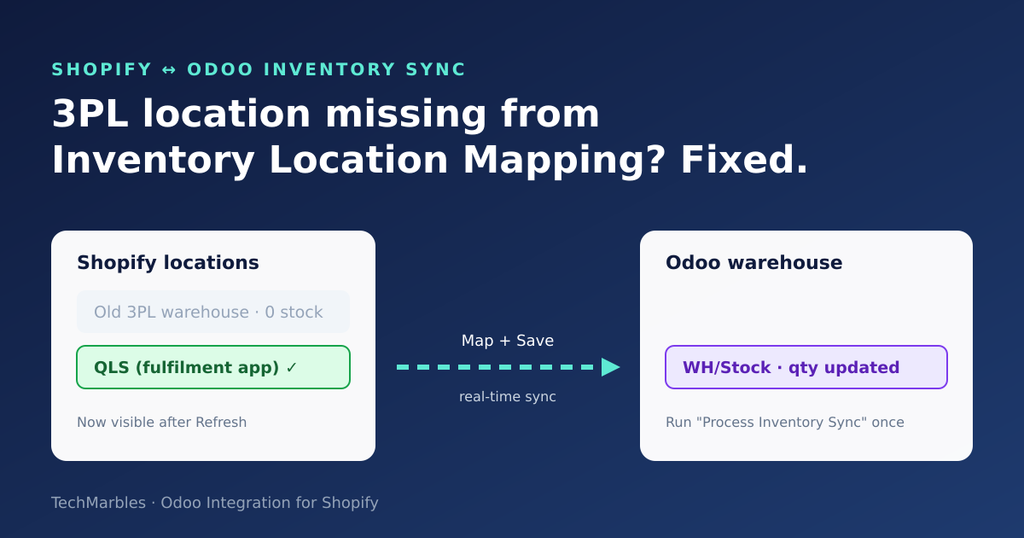
- Shopify created a new location called “QLS” and moved the store’s stock onto it.
-
- The old 3PL warehouse location in Shopify dropped to 0 stock.
-
- In the app’s Inventory Settings → Inventory Location Mapping (Shopify to Odoo), the QLS location did not appear in the dropdown, so it couldn’t be mapped to the Odoo stock location.
-
- Because QLS wasn’t mapped, real-time inventory updates and the manual Process Inventory Sync both ignored it. Odoo’s on-hand quantities went stale.
For any brand that relies on Odoo for purchasing, replenishment or reporting, stale stock numbers are a real risk: overselling, wrong reorder points and confused warehouse teams.
Why it happens: Shopify hides fulfilment-app locations by default
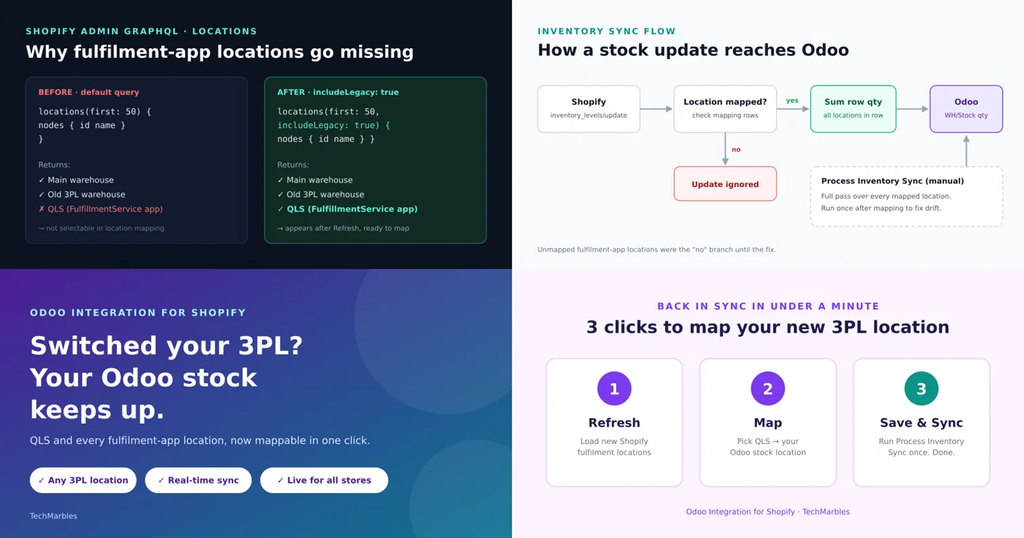
Shopify treats locations that are created by a fulfilment service app (such as QLS, ShopWeDo e-fulfilment and many other 3PL apps) differently from the locations you create yourself under Settings → Locations.
When an integration app asks Shopify for the store’s list of locations, Shopify leaves these fulfilment-app locations out unless the app explicitly asks to include them. Our app wasn’t asking, so the QLS location never came back from Shopify and never showed up in the mapping screen.
The merchant actually spotted this pattern themselves, which helped us confirm the cause quickly.
The solution: we now load fulfilment-service locations for every store
We updated the Odoo Integration app so it requests fulfilment-app locations from Shopify along with your regular locations. This fix is live for all stores, not just the one that reported it. Any 3PL location in your Shopify admin, including QLS, can now be selected in Inventory Location Mapping.
How to map your new 3PL location in 3 steps
-
- Refresh the location list. Go to Inventory Settings → Inventory Location Mapping Shopify to Odoo and click Refresh next to (+) Add.
-
- Update your mapping row. In your existing row, replace the old 3PL location with the new one (for example, replace the old warehouse with “QLS”), or add the new location to the same row. Keep your Odoo stock location (for example, WH/Stock) as the destination.
-
- Click Save.
Tip: If one row contains more than one Shopify location, the app adds their quantities together before sending them to Odoo. If your old 3PL location is now at 0, keeping it in the row or removing it gives the same result. Removing it keeps things tidy.
What happens to stock sync after you map it
Once the new location is mapped, both sync methods read stock from it:
-
- Real-time sync: Shopify has been sending inventory updates for the new location since the switch. The app was only ignoring them because the location wasn’t mapped. After you save, those updates flow into Odoo automatically.
-
- Process Inventory Sync: To bring your Odoo stock location back to the correct numbers straight away, click Process Inventory Sync once after saving. This does a full pass and corrects anything that drifted while the location was unmapped.
Checklist: switching 3PLs without breaking your Shopify–Odoo sync
-
- Before the switch, ask your 3PL whether they’ll create a new Shopify location or reuse the existing one.
-
- On switch day, open Inventory Location Mapping, click Refresh, and map the new location to the right Odoo warehouse.
-
- Run Process Inventory Sync once to reconcile quantities.
-
- Spot-check a few SKUs in Shopify against Odoo on-hand stock.
-
- Leave the old location mapped until it’s at 0, then remove it.
FAQ
Why is my Shopify location not showing in the Odoo inventory mapping? If the location was created by a fulfilment or 3PL app, Shopify only returns it to integration apps that explicitly ask for it. The Odoo Integration app now does this, so click Refresh in the mapping screen to load it.
Do I need to reinstall the app or reconnect Shopify? No. The fix is already live. Just click Refresh, map the location and save.
Will I lose stock updates from the days the location wasn’t mapped? Run Process Inventory Sync once after mapping. It reads current stock from every mapped location and brings Odoo up to date.
Can I map several Shopify locations to one Odoo location? Yes. Put them in the same row and their quantities are summed into the Odoo location.
Does this work for 3PLs other than QLS? Yes. It applies to any location created by a Shopify fulfilment service app.
Need help with your Shopify–Odoo inventory sync?
If your stock still doesn’t match after mapping and running a sync, contact our team at [email protected] and we’ll check it right away.
New to the app? Odoo Integration for Shopify keeps products, orders, customers and inventory in sync between Shopify and Odoo, with multi-location inventory mapping built in.